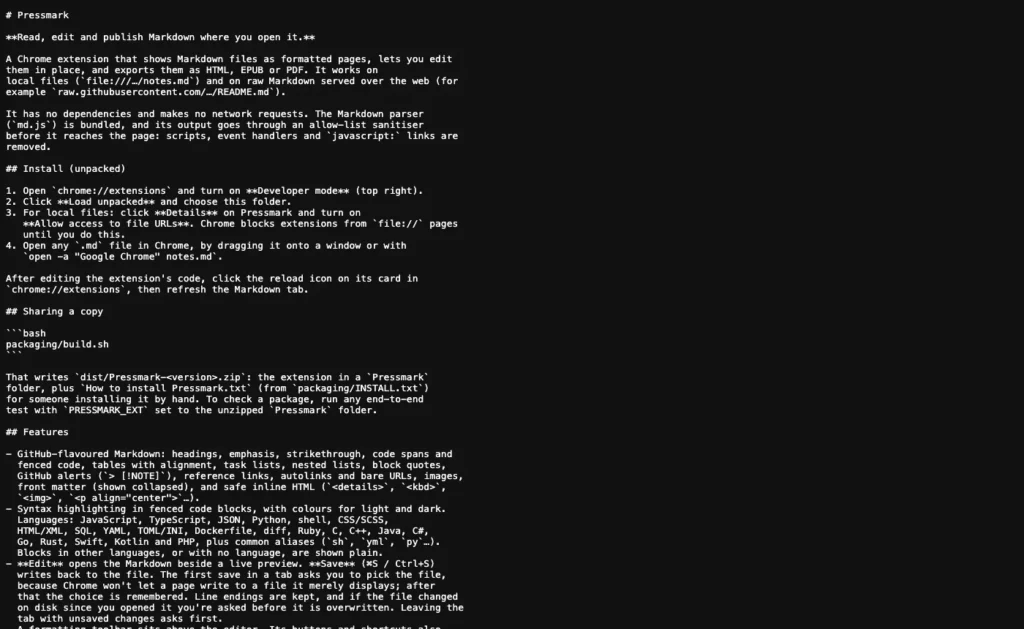
Chrome opens a Markdown file as a wall of plain text, hash marks and asterisks included. I wanted a Markdown viewer for Chrome that simply showed the file formatted. One evening later it had become Pressmark, a Chrome extension that reads, edits and exports Markdown files right where you open them. This is how a one-line request grew into a small writing tool, and the traps along the way.
A wall of text, then a page
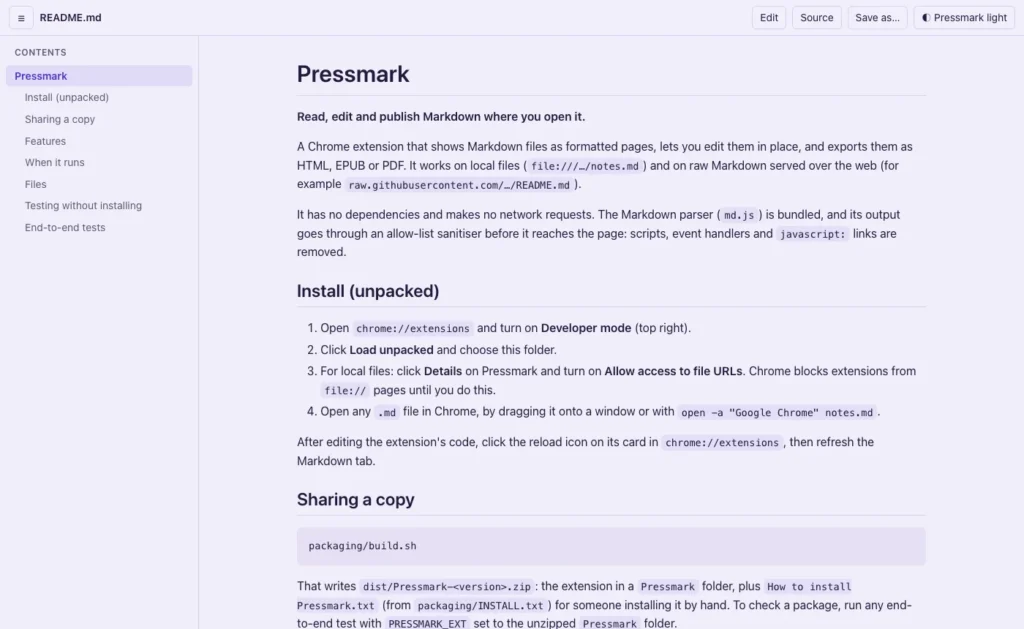
The first request was just that: show .md files formatted. Pressmark steps in only when Chrome is showing a Markdown file as plain text, and leaves real web pages alone. Everything happens on your own computer. It pulls in no outside code, makes no network requests and needs no account.
Code samples are coloured for 23 languages, and a longer document gets a contents sidebar that follows you as you scroll.
Too light, too dark
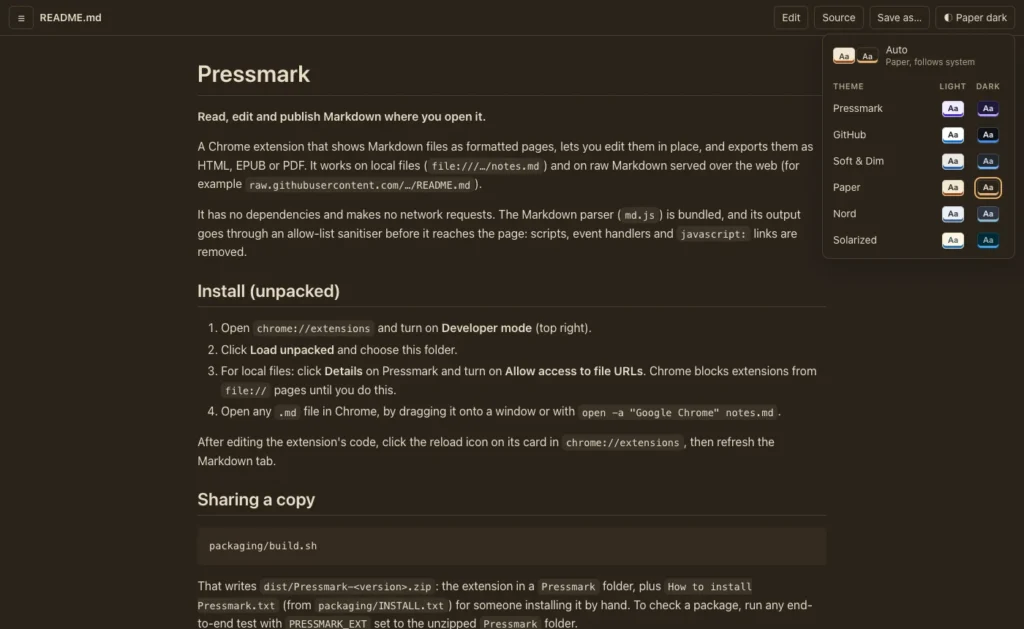
My first complaint was the colours: the usual light theme glares, and the dark one is close to black. So Pressmark got colour packs, including a warm grey, a sepia “paper”, Nord, Solarized and a softer slate dark. Every text colour is checked against its background with the standard readability test, a contrast of at least 4.5 to 1.
Later the packs became six matched pairs. When my Mac switches between light and dark, Auto now moves between the two halves of the same theme, instead of jumping from sepia to blue-grey. Two packs were added only to complete their pairs: a light Nord, and a sepia for reading at night.
Editing the file you are reading
Then I wondered whether I could edit the file, not just read it. Yes, with one catch: Chrome won’t let a web page quietly write to a file it is displaying, which is a good rule. So the first save asks you to pick the file, once, and Pressmark remembers it after that. It also asks before overwriting a file that changed on disk after you opened it.
One trap was easy to miss. Chrome tidies a file’s line endings when it displays it, so a file written on Windows would have been saved back in Mac format without anyone noticing. Pressmark checks the original on disk when it saves, and keeps what was there.
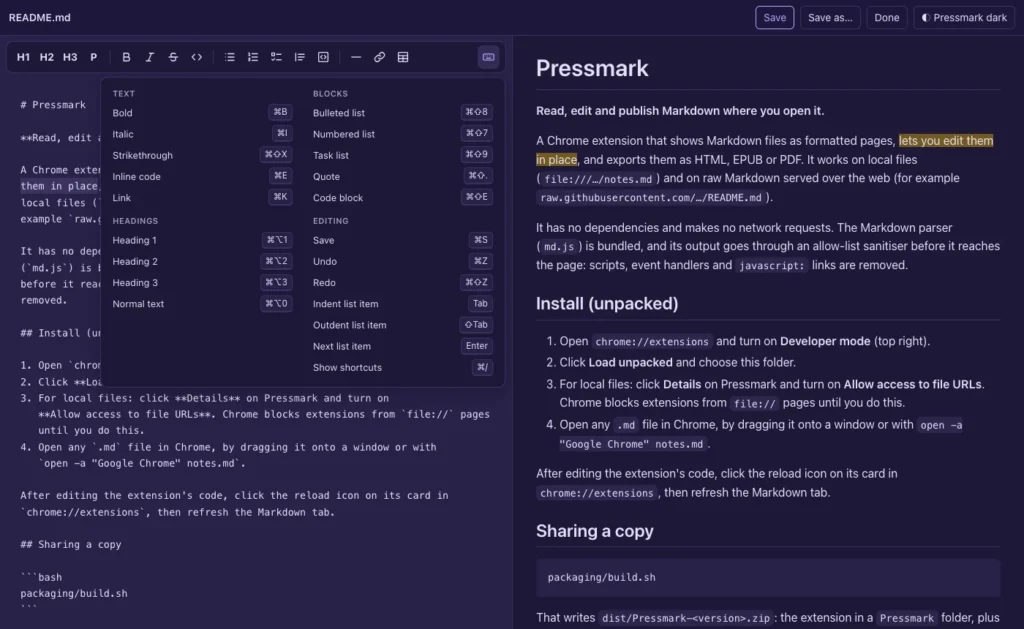
The editor has a toolbar, styled after a screenshot of an editor I liked, and the shortcuts you would expect: ⌘B for bold, ⌘I for italic, and lists that carry on when you press Enter. Every change goes through the browser’s normal typing, so undo behaves the way you expect. A keyboard button at the end of the toolbar lists every shortcut.
The selection that follows you
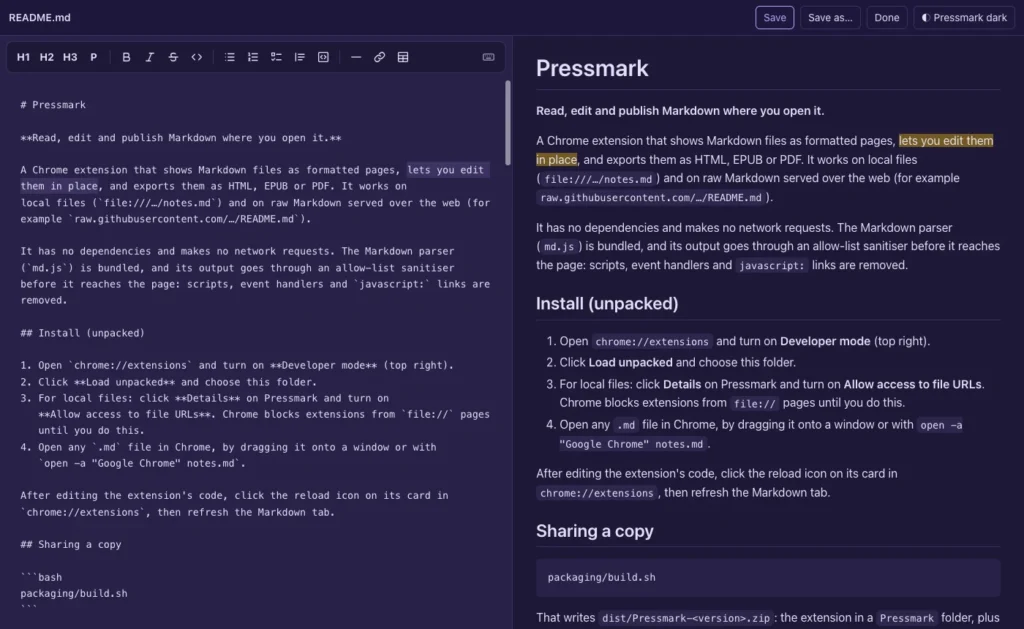
This was the part I cared about most, and the hardest to get right. Select a phrase in the editor and the same words light up in the preview. Select in the preview and the source lights up. The selection also carries over when you switch between the formatted page and the raw text.
The difficulty is that the two sides don’t contain the same characters: the source has asterisks, link addresses and list markers that the preview doesn’t. Pressmark lines the two up character by character, skipping the markup. It worked on everything I tried, until one paragraph in the preface of a book I’m writing. A selection that began in the small gap between two paragraphs jumped to the top of the document. That is fixed, and the tests now select every word of the sample documents, one at a time, and check that each lands in the right place on the other side.
Save as HTML, EPUB or PDF
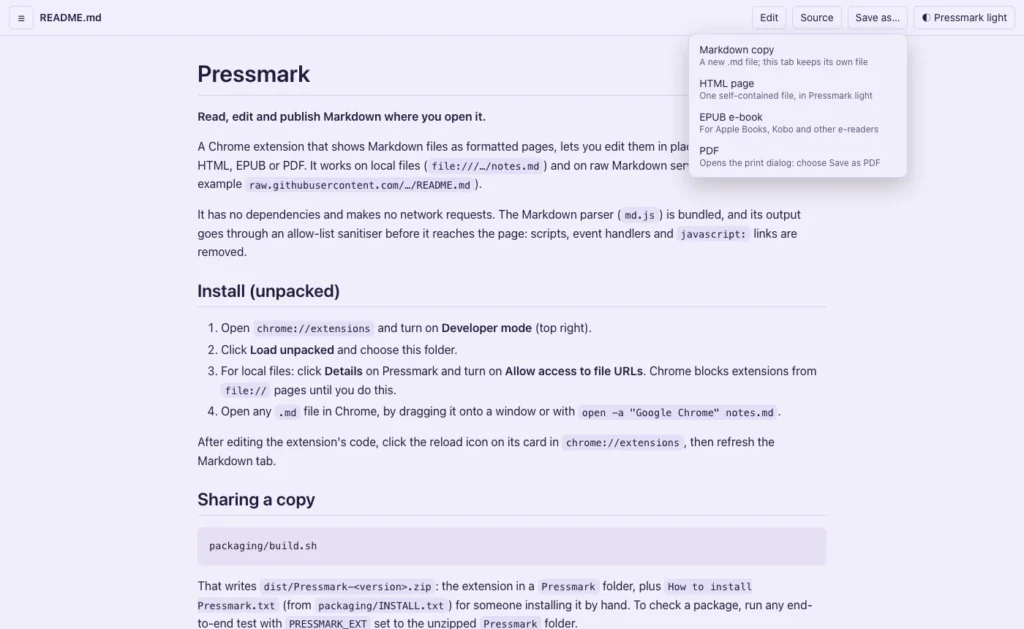
Once you can edit, you want to send the result somewhere. Save as makes a Markdown copy, a single self-contained web page in the theme you are using, an EPUB e-book, or a PDF through Chrome’s print dialog.
The e-book is built inside the extension, with no outside libraries. Each top-level heading starts a chapter, links between sections still work across chapters, and pictures are copied into the book. I ran it through EPUBCheck, the official validator: ten errors, all the same one. Tables used an old way of saying “centre this column” that e-books don’t allow. One fix, and it passes with no errors or warnings.
From MD Reader to Pressmark
By then the working name, MD Reader, undersold it. Of the names I was offered, Pressmark won: a pressmark is the shelf mark a library gives a book, and “press” suits a tool that publishes. A search of the Chrome Web Store and of software trademarks found nothing else using it. The store name keeps the words people actually search for: Pressmark: Markdown reader, editor & exporter.
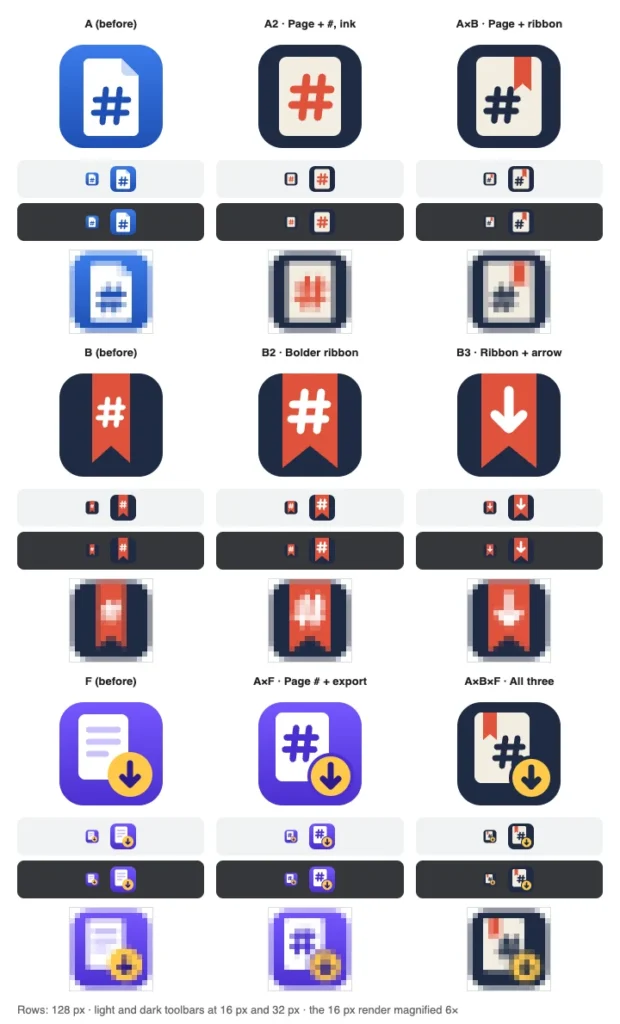
The first icon didn’t work for me. I asked for options, liked three different directions, and a second round combined them. I chose a page with a Markdown hash mark and a gold export badge. Its violet and gold then became Pressmark’s own light and dark themes, which are now the default.
How it turned out
It took about two and a quarter hours, over 18 commits, from the first request to a zip I could send a friend. Pressmark is 3,298 lines of code in 7 files, a 54 KB download with no dependencies, and it is checked by 183 automated tests that run in a real copy of Chrome.
Pressmark isn’t in the Chrome Web Store yet, though that is the plan. For now you can download it from the Pressmark project page and install it by hand. The instructions are in the zip, and it takes about two minutes.