

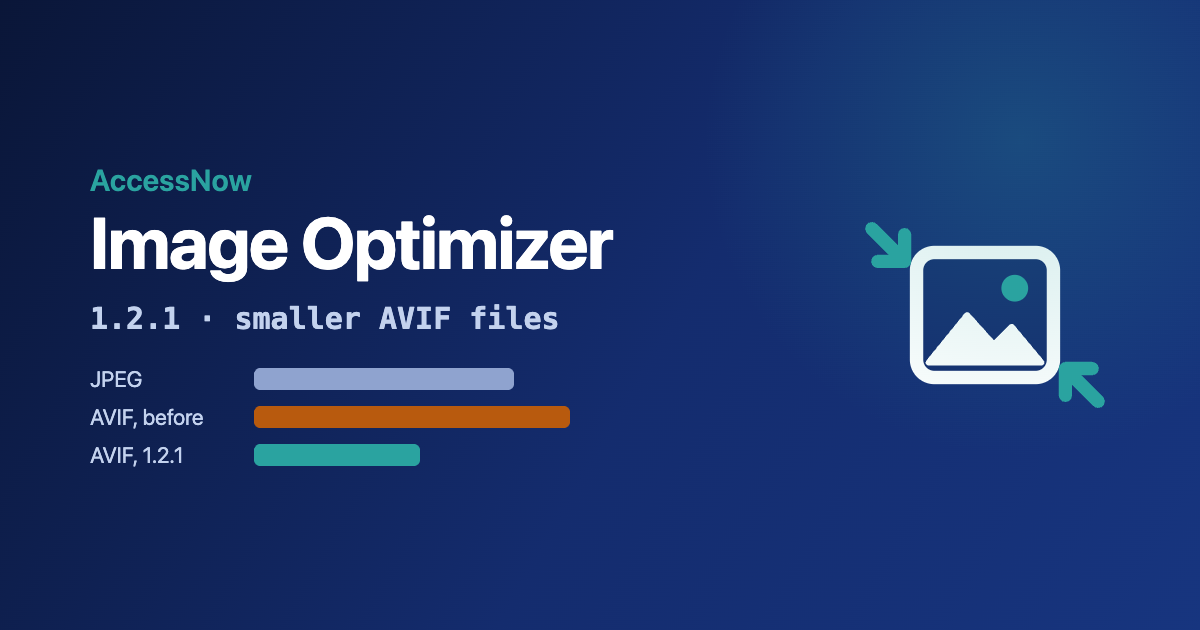
AccessNow Image Optimizer is a free WordPress plugin that shrinks big uploads and makes WebP and AVIF copies of every image, so browsers that support those formats download less. Version 1.2.1 fixes a problem I found while writing its help articles: on real photos, the AVIF copies were often bigger than the JPEGs they were meant to replace.
Download 1.2.1 from the AccessNow Image Optimizer page. It is on its way to the WordPress.org plugin directory; until it is listed there, that page is the place to get it.
Why the AVIF files were too big
The plugin had one Quality setting, 85 out of 100, and used it for JPEG, WebP and AVIF alike. The trouble is that the number doesn’t mean the same thing in each format. AVIF at 85 keeps far more detail than JPEG at 85, and pays for it in file size. Browsers that support AVIF ask for it first, so on those browsers the plugin was making pages heavier, not lighter.
I measured it on three phone and camera photos, each resized to 2,560 pixels wide, and compared how closely each file matched the original (SSIM, a standard image-similarity measure):
| Photo | JPEG at 85 | AVIF at 85 (1.2.0) | AVIF at 70 (1.2.1) |
|---|---|---|---|
| 1 | 1,086 KB | 1,321 KB | 692 KB |
| 2 | 562 KB | 596 KB | 352 KB |
| 3 | 545 KB | 653 KB | 331 KB |
What changes in 1.2.1
- AVIF has its own quality setting. It starts 15 below Quality, so 70 on a new site. Sites upgrading keep their Quality and get an AVIF quality 15 below it.
- A copy that isn’t smaller is never used. If a WebP or AVIF copy comes out the same size as the original or bigger, it is thrown away and the original is served. Tiny or heavily compressed images are where this happens.
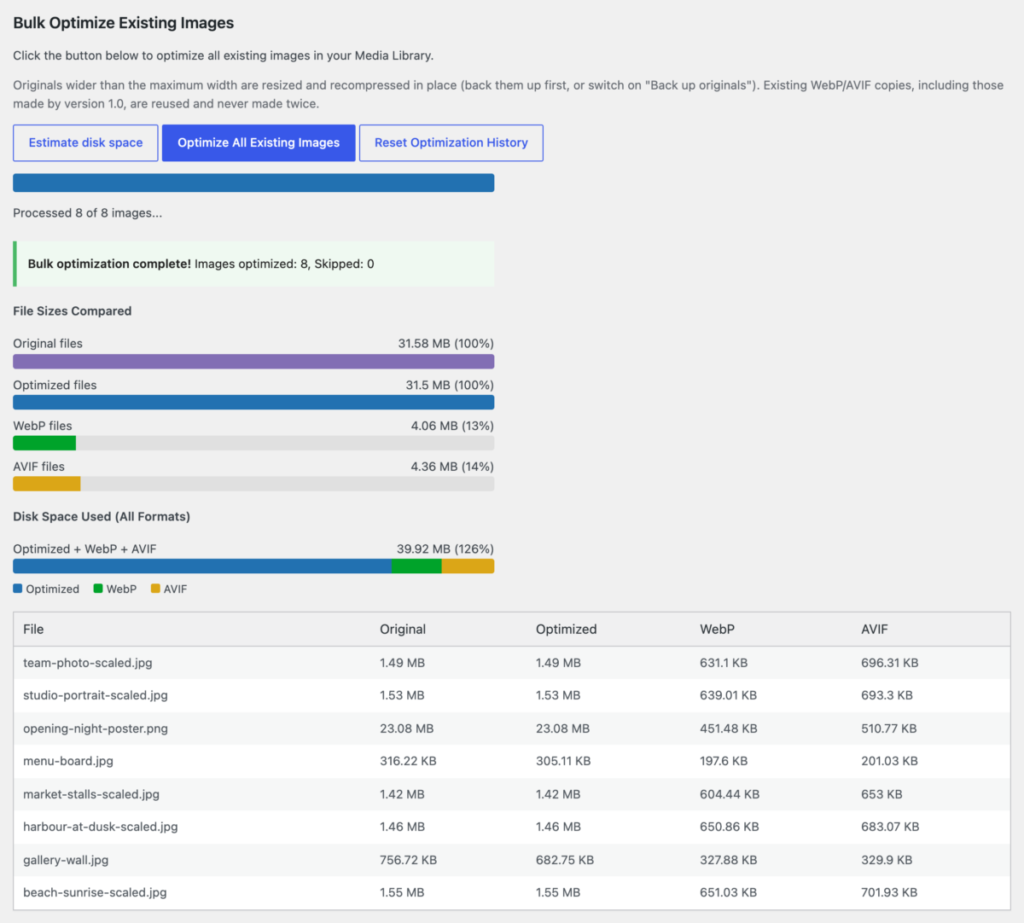
- The bulk optimiser’s results add up properly. They used to count every thumbnail size’s WebP and AVIF copies against the main image alone, which made the copies look huge. Now both sides include the thumbnails.
- Help is one click away. The Plugins screen links to the help articles and to support, and the settings page has a Help tab that links each section to the article about it.
After you upgrade
Run the bulk optimiser once: Settings → Image Optimizer → Optimize All Existing Images. The upgrade puts every image back in the queue, and the run replaces any AVIF copy that turned out bigger than its original. Copies that were already smaller are kept, and nothing the plugin has already recompressed is recompressed again. Optimise the images you already have walks through it.
Get it
AccessNow Image Optimizer is free, and everything happens on your own server: no account, no API key, and no images sent anywhere. Download it from the AccessNow Image Optimizer page. New to it? Start with Getting started: check your server, then choose your settings, or browse all the help articles.