


A code review of AccessNow LMS, my small WordPress LMS plugin, compared it with LearnDash, Tutor LMS, LearnPress and the other big LMS plugins, and listed what they have that it didn’t. Five of those things felt like the minimum before putting it on wordpress.org: blocks for course pages, finding a student by name, exporting to a spreadsheet, explaining quiz answers, and working properly with a screen reader or keyboard. (The bugs the same review found are a separate story.)
I first wrote the plugin to train referees for the 2026 Soke Cup after a major rewrite of the tournament rules, in English and Japanese. So I built these five on a throwaway copy of WordPress loaded with that real rules course and four made-up students part way through it. Every screenshot below is from that site, before and after.
Course pages without shortcodes
Putting the course list on a page used to mean typing a shortcode, a word in square brackets, and seeing nothing but that grey box in the editor until you previewed the page. Now there are three blocks: Course Catalogue, My Courses and Student Dashboard. Search for “LMS” in the editor and they show your real courses as you work.
![The page editor before: the course catalogue appears only as a grey Shortcode box containing [accessnow_slms_course_catalog].](https://www.accessnow.com.au/wp-content/uploads/2026/10/lms-catalogue-shortcode-before-1024x576.webp)
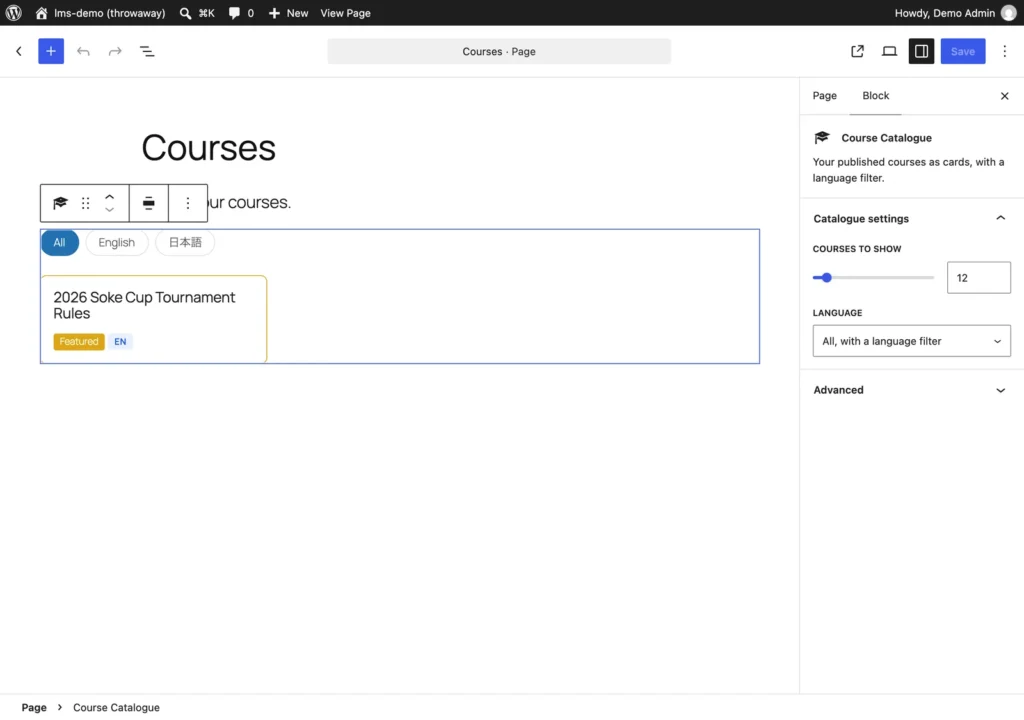
Each block draws exactly what its shortcode does, so the two can never drift apart, and the shortcodes keep working for anyone who prefers them. The catch: WordPress’s newest editor needs blocks built a slightly newer way, which only works from WordPress 6.3, so that is now the minimum. It came out in 2023.
Finding students by name
To enrol someone, the old form asked for their user ID, a number you could only find by opening another screen, hovering over their name and reading it out of the address bar. Now you start typing a name, username or email, pick from a short list, and each person becomes a little tag. Tick as many courses as you like, and everyone goes into every course in one go.
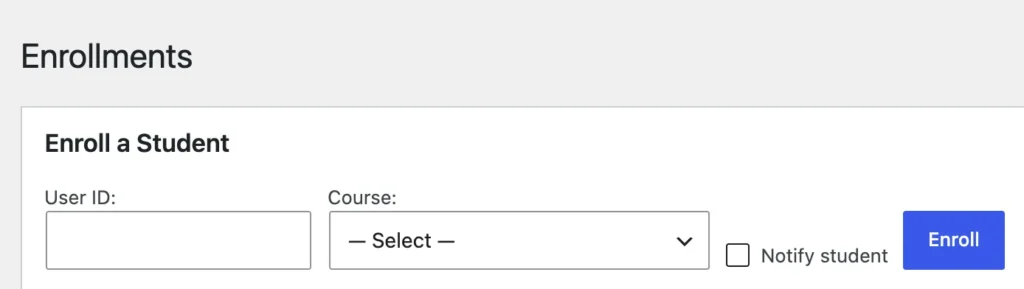
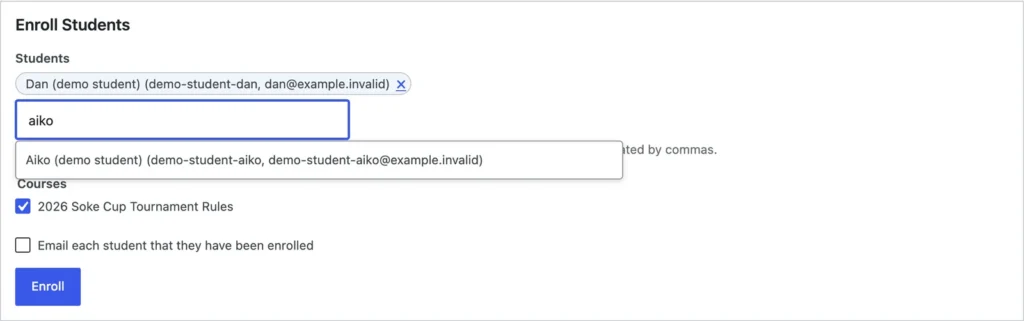
It still works if the page’s scripts don’t load: the same box accepts a list of names or emails separated by commas, and tells you about any it can’t find. With a keyboard, the arrow keys move through the list and Enter picks a person rather than submitting the form, which is easy to get wrong and infuriating when you do.
Reports you can take away
Reports showed progress on screen and nowhere else. Now Export buttons download every enrolment, with each student’s progress, or every quiz attempt, with its score and whether they passed, failed or ran out of time. For one course or all of them.
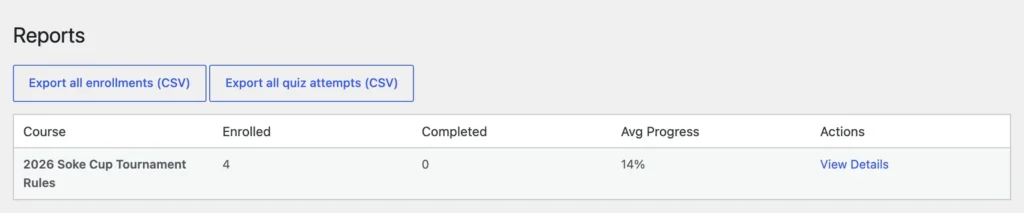
Two details matter more than they look. Excel garbles Japanese names unless the file announces its character set at the very start, so it does. And a spreadsheet will run anything that starts with an equals sign as a formula, so a student who registered with a name like “=HYPERLINK(…)” could plant a live link in your report. Anything that looks like a formula is now saved as plain text.
Quizzes that explain themselves
After a quiz, students saw a tick or a cross against each question and nothing else. They knew they were wrong, not why. Now each question can have an explanation, and each quiz chooses when students see it along with the right answer: never, once they pass, after their last attempt, or every time.
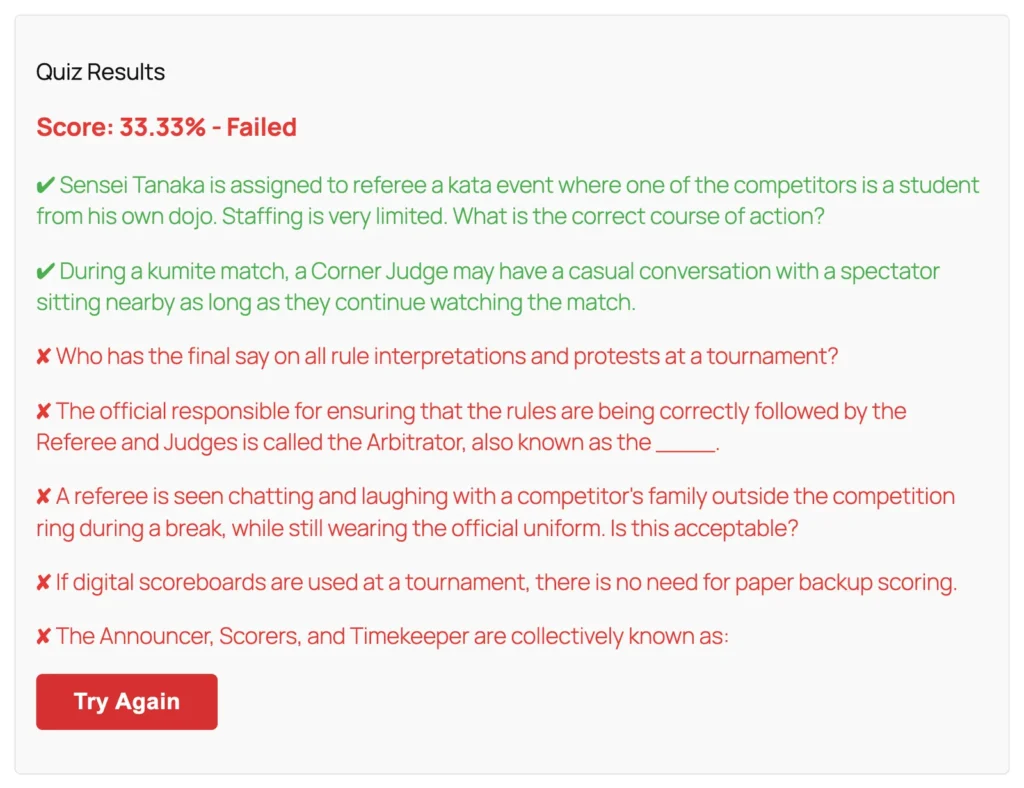
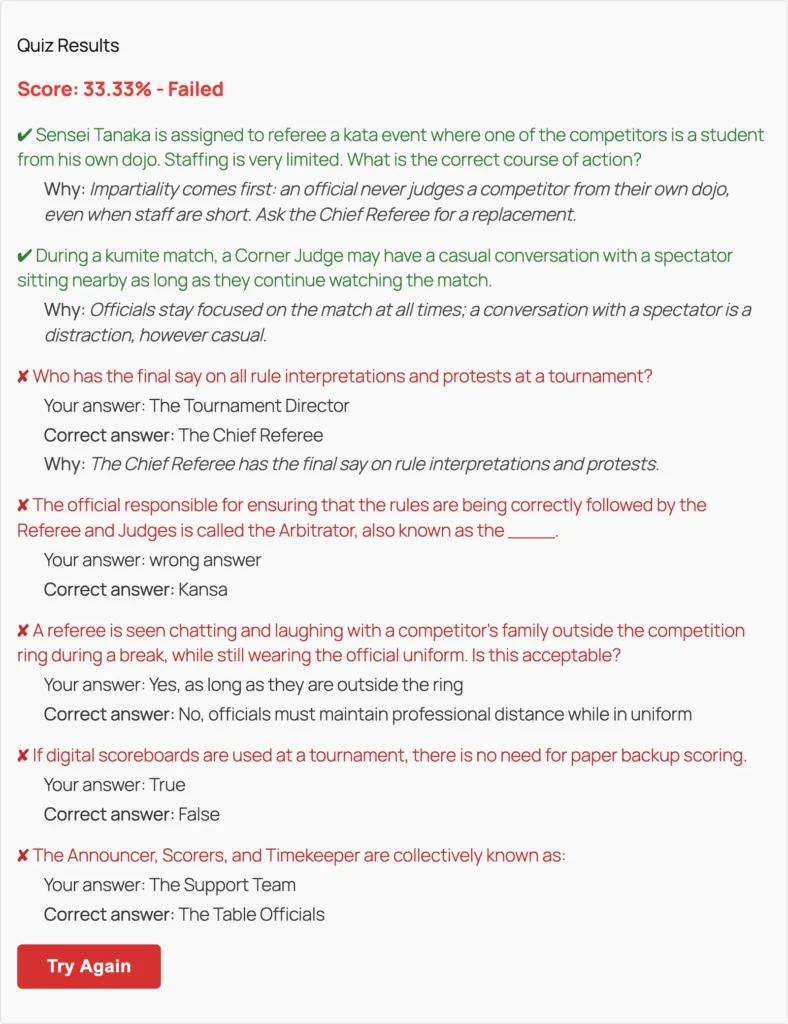
The correct answers aren’t hidden in the page waiting to be found. The website only sends them with the result, and only when the quiz’s setting allows, so a curious student viewing the page source learns nothing.
Built for screen readers and keyboards
There was exactly one accessibility label in every page the plugin drew. Quiz choices were loose buttons with no question attached, so a screen reader announced “True, radio button” with no idea what was true. Pressing Next question left the cursor stranded on a button that had just vanished. Errors appeared as pop-up boxes. The quiz timer was silent.
Now each question is announced with its choices, the cursor moves to the next question or to the result, messages appear on the page, and the timer says when 5 minutes, 1 minute and 30 seconds are left without talking every second. Progress bars announce their value.
Then I ran an automated accessibility checker over every student page, and it found what I had missed: nine colours too faint to read comfortably, including the gold “Featured” badge, whose text had a contrast of 2.2 against the 4.5 the standard asks for. All nine are fixed, and they look the same at a glance.
What the real course caught
Testing on a real course with real-looking students found things no amount of reading the code would have. A quiz called “Code of Ethics & Roles” came out of the spreadsheet export with the ampersand mangled into code. The screen reader message for one search result said “1 matching users”. On a narrow theme, the quiz results table ran off the edge of the page. And a page I called “Courses” never appeared, because the plugin already owns that address for its own course list; that one went straight into the help articles as a warning.
Altogether this added 58 automated checks, which now run before every change, and eight help articles with screenshots from the same demo site.
Everything about the plugin, including how to get it, is on the AccessNow LMS project page. It’s on its way to wordpress.org, and I’ll post here when you can install it from Plugins → Add New.
To see it working, take the free beginner’s guitar course built with it, as a student would. The same course is on the project page as a download, to import into your own site.


